Tutorials
    August 27, 2026
    15 min

    Sendio Capture: Turn Your Own LinkedIn Posts Into a Lead Table

    Sendio Capture: Turn Your Own LinkedIn Posts Into a Lead Table

    The warmest list in your funnel is already written. It is sitting under your last post.

    Every post that performs leaves a list behind it: the people who reacted and the people who commented. Those are humans who stopped scrolling, read something about the problem you solve, and put their name on a public response to it. There is no colder version of that list anywhere in a database you can buy.

    And it dies there, every time, because nobody copies a hundred profiles by hand twice.

    Sendio Capture is a browser extension that takes what is already on your screen and turns it into rows inside your Sendio workspace. Reactors and commenters on a post. A Sales Navigator lead search. An account search, with the company domain attached. One person you spotted in a comment thread. It runs in the tab you already have open, in your own logged in session, and it only moves when you click.

    Here is what it does and how to get it running.

    Five places it works, two kinds of table

    Capture reads people into lead tables and companies into company tables. Those are different table types in Sendio and they never mix, which keeps a company row from landing in the middle of your prospect list.

    Post engagers. Open any post with an activity id in the URL, pick Reactors, Commenters, or both, and Capture prepares the page for you. It scrolls until comments load, opens and closes the reactions dialog, and reads both lists through the same API the LinkedIn interface uses to draw the screen.

    Sales Navigator lead search. Build whatever filter you want, then capture the results top down. Because Sales Navigator results are already structured, these rows arrive with title, company, region, and connection degree filled in.

    Sales Navigator account search. The same thing on the company side, and this one resolves each company's website so the row has a domain.

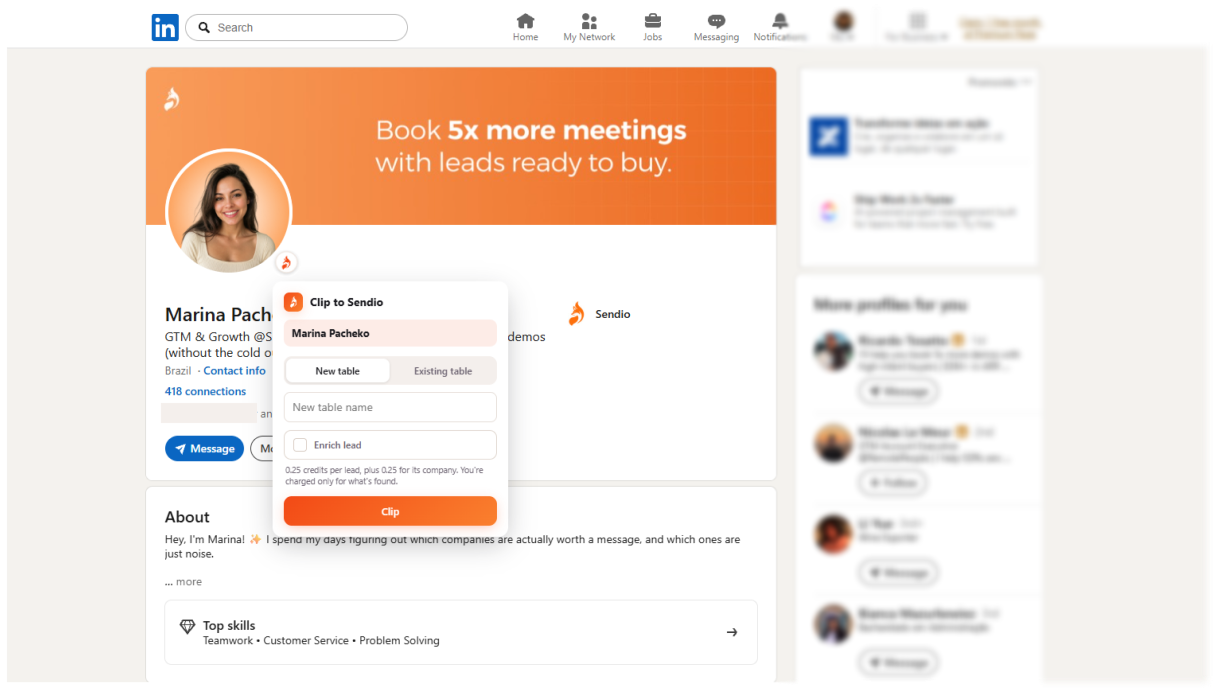
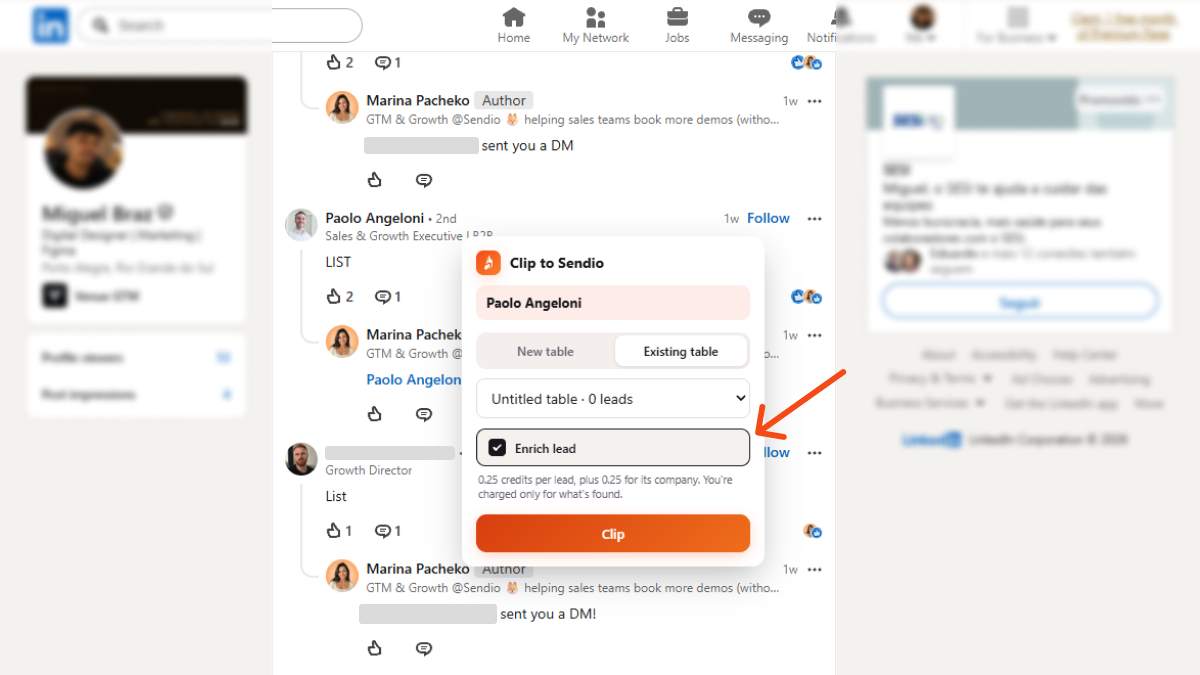
    One person, clipped. Hover a profile photo anywhere (the feed, a comment, the reactions dialog, a search result, the top of a profile, a Sales Navigator card) and a small fox badge appears on the corner of the image. One click, choose a table, done.

    One company, clipped. Same badge on a company logo: a post author that is a page, a lead's current employer, an account card, or a company page itself.

    Your session, your click, nothing in the background

    This is the part worth being precise about, because it is what separates Capture from the tools that get accounts restricted.

    It runs in the browser you already use. There is no robot account logging into LinkedIn as you and no third party server holding your session. The requests come from your tab, in your session, the same way the page itself would make them.

    Nothing starts on its own. No scheduled capture, no background sweep. The extension makes a request when you click a button and stays quiet otherwise.

    It moves at human pace. Small pages, variable pauses between them, a ceiling per capture, and an immediate stop on any error or checkpoint from LinkedIn.

    It never acts as you. Capture does not react, comment, connect, or message. The reactions dialog it opens is the counter, the same one anybody clicks to see who liked a post, and there is an explicit check for it: if the safe control is not found, the reaction capture simply does not run rather than risk liking the post in your name.

    Capturing is not sending. Rows land in a table and stop. Putting someone into a sequence stays a decision you make in the app.

    Installing it

    Access is switched on workspace by workspace by the Sendio team, and the extension is not in the Chrome Web Store yet, so installation means loading a folder into Chrome yourself. It takes about two minutes.

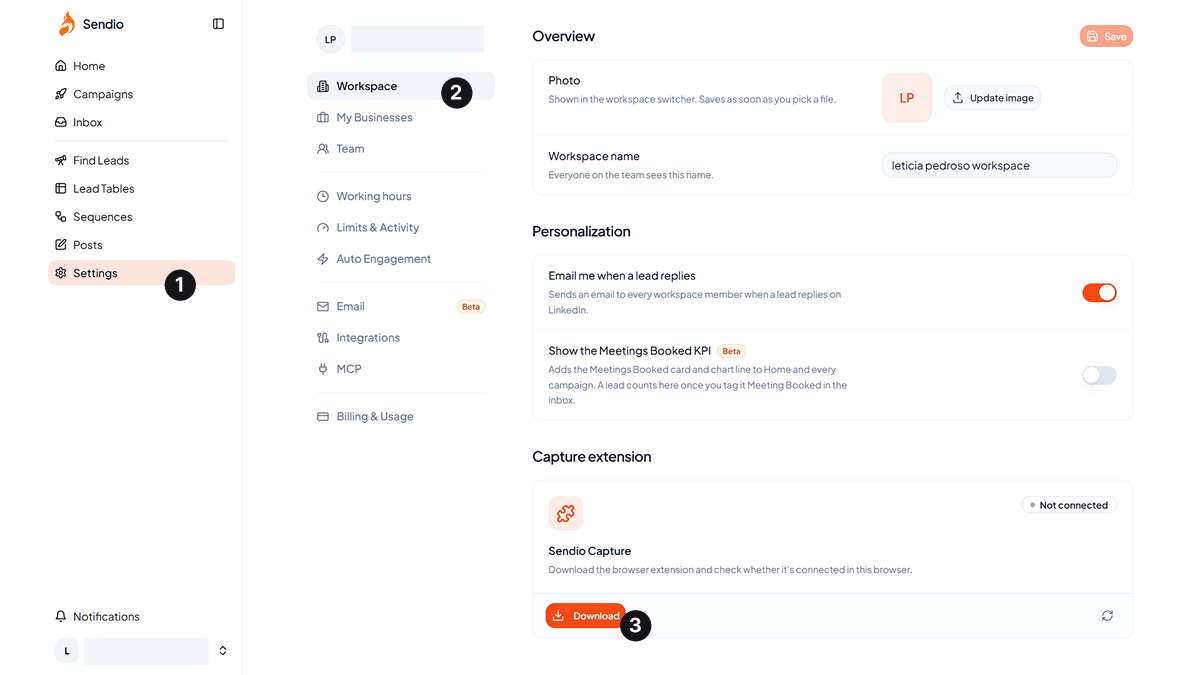
    Everything starts from the Sendio Capture card in Settings, Capture extension. That card shows in real time whether the extension is installed and connected in the browser you are looking at, with a button to check again.

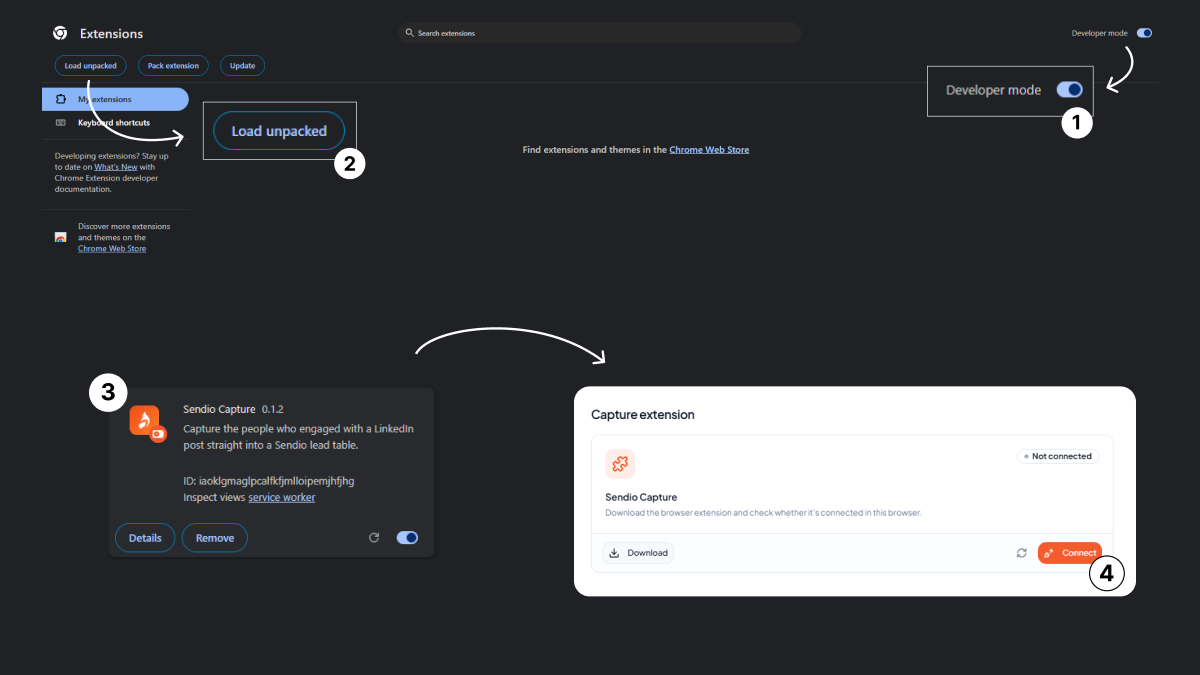
    1. Click Download and unzip the file.
    2. Open chrome://extensions and turn on Developer mode.
    3. Click Load unpacked and pick the folder you just unzipped.
    4. Go back to Sendio and click Connect.

    Steps two and three only appear after the download, and they disappear on their own once Sendio detects the extension installed.

    Then pin the fox icon to your Chrome toolbar. That icon is how you open the status popup and the panel later.

    One thing that trips people up on day one: reload any LinkedIn tabs that were already open before you installed or updated. The content script is not injected into tabs that loaded earlier. Capture detects that state and shows "Sendio Capture was updated. Reload this page to use it." with a reload button, instead of spinning forever.

    Works on Chrome and Edge, Chrome 116 or newer.

    Connecting to your workspace

    Step four above already did this. If the connection drops later, or you move to another browser, the path is the same and there are three doors into it: the extension icon, the panel inside LinkedIn, and the card in Settings all carry the same Connect Sendio button.

    Clicking it opens app.sendio.ai/extension/connect. You need to be logged into Sendio in that tab. The page checks that your workspace has Capture enabled and hands the session to the extension. The icon then shows Connected along with the workspace name.

    The session is stored only in the extension's service worker. No LinkedIn page can see your Sendio credential, and neither can the panel that renders on top of it. To sign out, use Disconnect in the same popup.

    If you see "Your workspace doesn't have Sendio Capture enabled yet", the connection worked and the feature flag is what is missing. That is an admin setting, not a reinstall. Ask the Sendio team to enable Capture for your workspace.

    Capturing the people who engaged with a post

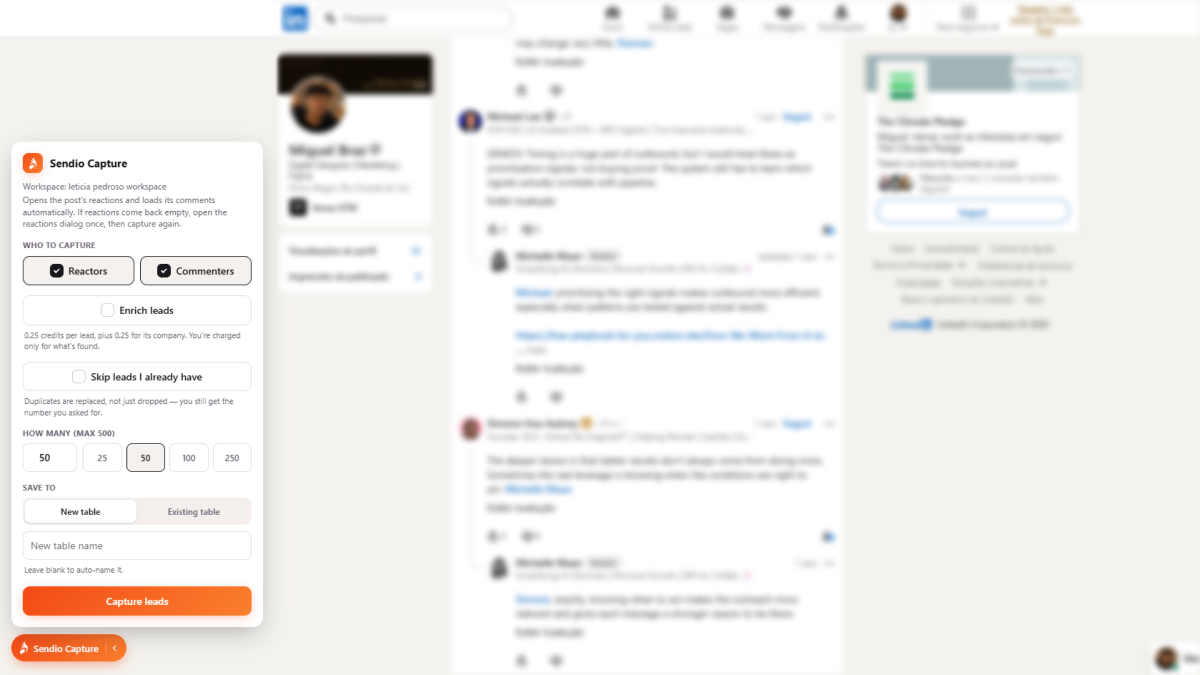
    Open the post itself, by its date or permalink, not the feed. An orange Sendio Capture pill sits in the bottom left corner of the page. Click it to open the panel, which adapts to whatever page you are on. The small arrow on the pill tucks it into the side, and Capture remembers that choice everywhere.

    Choose Reactors, Commenters, or both, then set the quantity. The field has shortcuts for 25, 50, 100 and 250, defaults to 50, and caps at 500 per capture.

    What gets written to the lead table: profile URL, name, headline, and engagement_type, which is either REACTION or COMMENT. That last field becomes a column, so you can filter the people who took the time to write something from the people who only tapped like. Those two groups deserve different messages.

    Leave the table name blank and the table gets named after the post.

    Go to the people search, build the filter you want (title, company, region, size), and let the results load. Open the panel and it captures that filter's leads, top down, up to the quantity you asked for.

    These rows arrive richer than post captures: name and URL plus title, company, region, and connection degree, because Sales Navigator results are already structured.

    Two behaviors to know about. Capture reads 25 leads per page, the same page size the interface uses, and pauses 3 to 7 seconds between pages. A capture of 100 takes a minute or two, and that is deliberate. Second, the search only returns LinkedIn's internal id for each person, so Capture resolves every one to a public /in/ URL and discards anyone it cannot resolve. Fewer rows, all of them usable, none of them an unreadable link that will not match the rest of your database later.

    Clipping a single person or company

    Sometimes you do not want a list. You want the one person who wrote the sharp comment.

    Hover their photo, click the fox badge, pick a table, click Clip. The clip reads what is already rendered on screen, with no scan at all. The only possible request is a single lookup, when the link on the page carries an internal id instead of a public URL.

    Company clips work the same way from a logo, and the popup resolves the website on the spot and shows you the domain it found. Unlike a bulk capture, a clip saves even without a website. It tells you "No website, so there's nothing to enrich. The row still saves." You keep the company in the table, you just cannot enrich that row.

    Building a company table that is actually useful

    Account search is the mirror image of lead search. Build the filter, open the panel, choose a quantity, capture. Capture walks the result pages and then resolves each company's website.

    The fields that land: name, domain, LinkedIn URL, industry, size band, headcount when LinkedIn reports it, location, description, and logo.

    Only companies with a website are stored. The ones without are checked and dropped, which is why progress reads like 12/50 · 30 checked. The honest number is what got saved, not what got read. Budget roughly a minute per 50 companies.

    When fewer rows come back than you asked for, the panel tells you which reason applies: the filter ran out, too many companies had no website (narrow the filter), or the run stopped early and is worth repeating.

    Why the domain is the entire point

    This is the mechanic behind that whole flow, and it explains why a company table without domains is a list of names.

    Sendio anchors every piece of firmographic data on the domain. It is the dedupe key for the company table, the key for the enrichment cache, and the only field that stitches company data back onto your leads. No domain means the row exists and does very little.

    The domain is also the one thing no LinkedIn result screen carries. The "Visit website" button you see on a company page is not markup, it is a field in an API response. So Capture reads that field directly, without opening a single company page: one lookup per company, deduplicated (ten leads from the same employer means one lookup), with a pause of 0.7 to 1.6 seconds between them, and no Sendio credit charged for it.

    It is the one unavoidable request in the company path, and it is far cheaper in both risk and money than opening fifty pages or asking a data vendor the same question.

    Where the rows land

    Every mode ends with the same question: New table or Existing table. A new table can take a name from you or be named after its source. An existing table shows up in a list with its current row count.

    Capturing the same post again into an existing table does not duplicate anyone, because the profile URL is the key (the domain plays that role for companies). Giving a new table an explicit name always creates a new table, even for a post you captured before.

    At the end of a capture, Open table in Sendio takes you straight to the right view for that table type.

    What arrives before any enrichment, on a person:

    FieldNote
    linkedin_urlAlways the public /in/ URL, never an internal id, which is what keeps the same person from duplicating across captures
    name, headlineAs they appear on LinkedIn
    engagement_typeREACTION, COMMENT, or SALES_NAV
    Title, company, region, degreeSales Navigator captures only

    And on a company:

    FieldNote
    domainThe key to everything. Without it the row saves but cannot be enriched
    company_name, linkedin_url
    industry, location, description, logo_url
    company_sizeThe band as LinkedIn reports it, for example 11 to 50
    employee_countThe exact number, when it exists

    Enrichment is optional, and off by default

    Every mode has an Enrich toggle, and it starts off. Turn it on and, after the rows are already saved, Capture asks Sendio for a lookup using the same source that Find Leads uses in the app.

    On a lead it fills title, company, industry, email, company domain, role start and tenure, role description, profile photo, plus seniority, company size, connections, followers, skills, summary, departments, and email status. On a company table it fills the firmographics directly, since there is no person to look up and the domain is already on the row.

    Enrichment only fills blanks. What you just captured from LinkedIn takes priority and never gets overwritten.

    Pricing is split on purpose, because it is common for a source to answer the person and miss the company or the reverse:

    HalfPriceHow it is charged
    Person0.25 creditPer lead, only if the lookup returns data for that person
    Company0.25 creditPer distinct domain, not per lead, so ten people from one company cost 0.25 total
    Company table0.25 creditPer company, and only the ones with a resolved website get looked up
    Not found0Anything the source did not answer is refunded

    The ceiling for a fully resolved lead is 0.5 credit, and it lands lower in practice because leads repeat employers.

    The order matters more than the price. Capture writes the rows first, enrichment runs second. If it fails, runs out of credit, or gets interrupted, you still have the full capture in your table, the panel tells you what happened, and nothing is charged for what was not delivered.

    Slow is the feature, not a limitation

    Capture runs on your real LinkedIn account. That is exactly what makes it effective, and exactly why the guards are not decoration.

    GuardValueReason
    Default per capture50Routine volume, safe to repeat
    On screen warningAbove 100The panel flags restriction risk
    Hard ceiling500The field snaps back to 500 if you type more
    Search page size25The same page size the interface uses
    Pause between pages3 to 7 secondsVariable, so it does not read as a burst
    Pause between companies0.7 to 1.6 secondsShorter, because it matches what LinkedIn fetches on hover anyway
    LinkedIn errorFull stopAny 4xx or checkpoint ends the capture immediately

    Common sense carries the rest. Capturing 500 people five times in one afternoon is the kind of pattern LinkedIn notices. Smaller captures, spaced out, on the posts that actually deserve it. The account risk is yours, and the point of the pacing is to keep that risk near zero.

    What Capture will never do: run on its own, react or comment or connect or message for you, put anyone into a campaign automatically, keep your Sendio credential inside a LinkedIn page, or ask for permission over your history, cookies, tabs, or every URL you visit. It requests storage and activeTab, with host access limited to LinkedIn and Sendio's own backends. The panel renders inside its own shadow root, so it does not inject anything into LinkedIn's own tree and cannot break their layout.

    When something looks stuck

    What you seeWhat to do
    "Sendio Capture was updated. Reload this page to use it."The tab loaded before the extension updated. Click Reload page
    Reactions came back emptyOpen the post's reactions dialog yourself once, close it, capture again
    "Open a LinkedIn post…"The URL has no activity id. Open the post itself through its date or permalink
    "Apply a filter in Sales Navigator…"Results have not loaded. Apply a filter, wait for the list, reopen the panel
    "LinkedIn stopped the request (status …)"You hit a limit. Stop, wait a few hours, come back with smaller volume. Everything already captured is saved
    "Checked N companies and none had a website"The account filter caught companies with no site on LinkedIn. Narrow it
    "Couldn't read this company from LinkedIn"The company lookup failed. Try again, and if it persists it means LinkedIn moved the endpoint
    Capture isn't enabled for your workspaceThe feature flag is missing. Talk to the Sendio team
    Enrichment failed on creditThe capture is saved. Top up and enrich from the app, or capture again with Enrich on, since a second pass only fills blanks
    Fewer leads than you asked forIn Sales Navigator, anyone without a resolvable public profile is dropped on purpose. On a post, there may simply not be that many engagers

    A better first campaign than any list you could buy

    Pick your best performing post from the last month. Capture the commenters and the reactors into one table, with engagement_type as a column. Write two openers, one for the people who commented and one for the people who reacted, and reference the actual post in both, because you know exactly what they read.

    That is a campaign built on people who raised their hand about your topic, in public, in the last thirty days. No purchased database contains that. It was yours the whole time, and now it takes a few clicks instead of an afternoon of copy and paste.

    Try Sendio free at sendio.ai