How to Create a LinkedIn Password When Your Account Is Connected to Gmail
In this article
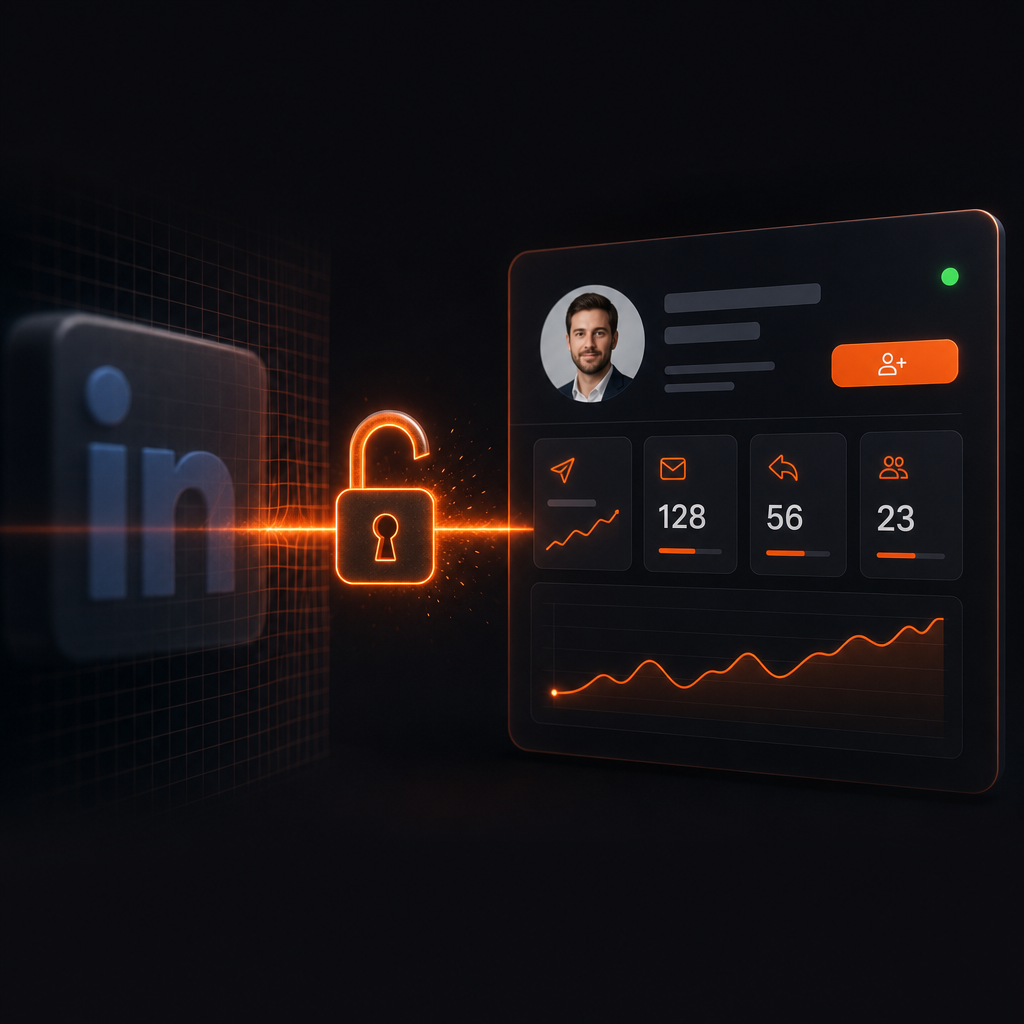
If you signed up for LinkedIn using your Google account, LinkedIn never created a password for you. That's fine for logging in through a browser, but it blocks you from connecting to B2B outreach tools like Sendio.
The fix goes through LinkedIn's Settings, where you'll find a "Forgot password" option that lets you create a password from scratch. It takes less than two minutes.
Before you start
Make sure you have access to the Gmail account linked to your LinkedIn profile. LinkedIn will send a 6-digit verification code to that address.
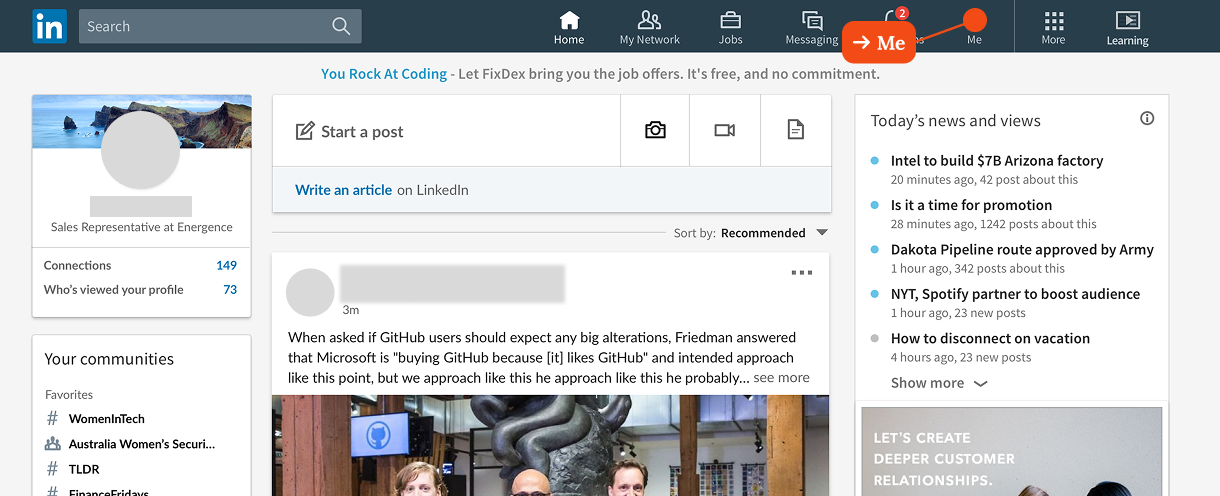
Step 1 — Click on "Me" in the top navigation
Log into LinkedIn via Google as usual. In the top navigation bar, click on "Me" (your profile icon) to open the account dropdown.
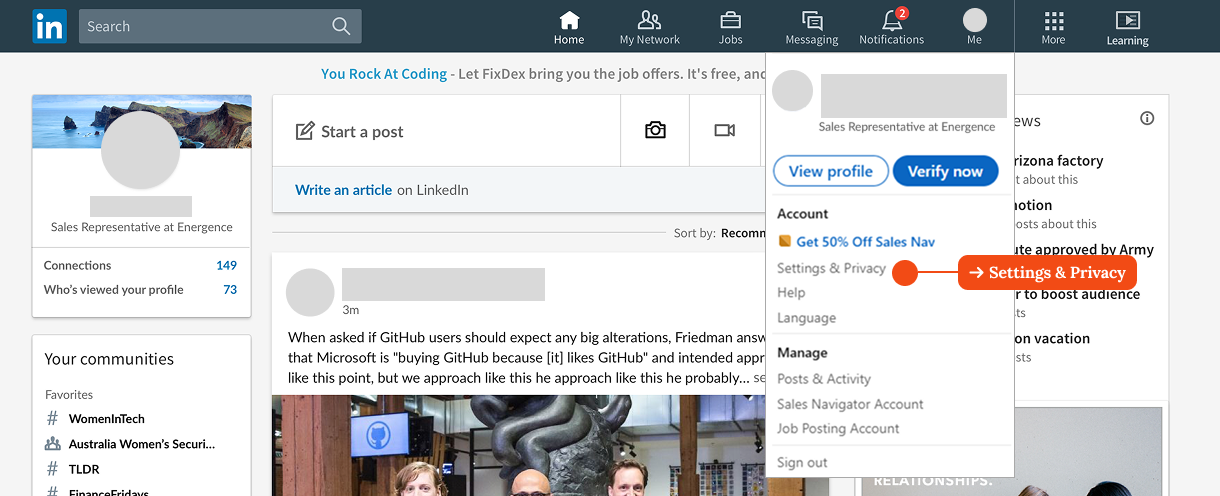
Step 2 — Go to "Settings & Privacy"
In the dropdown menu, click "Settings & Privacy" under the Account section.
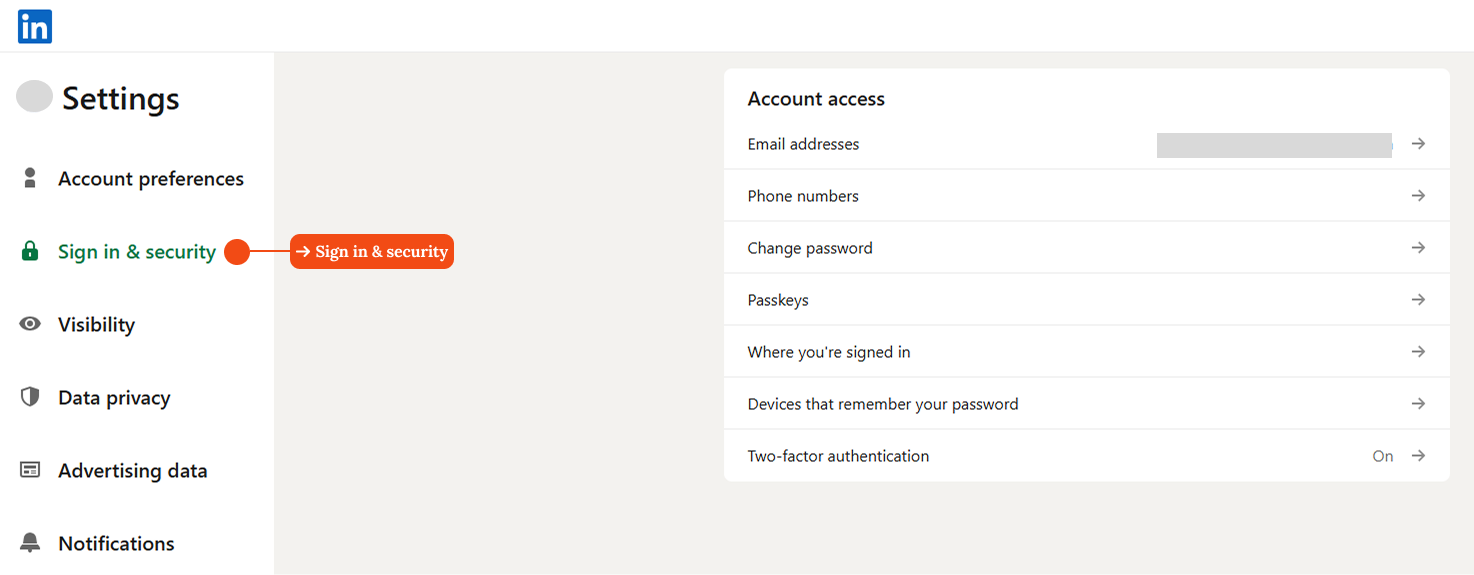
Step 3 — Click on "Sign in & security"
In the Settings sidebar, click "Sign in & security". This section controls your email, password, and authentication methods.
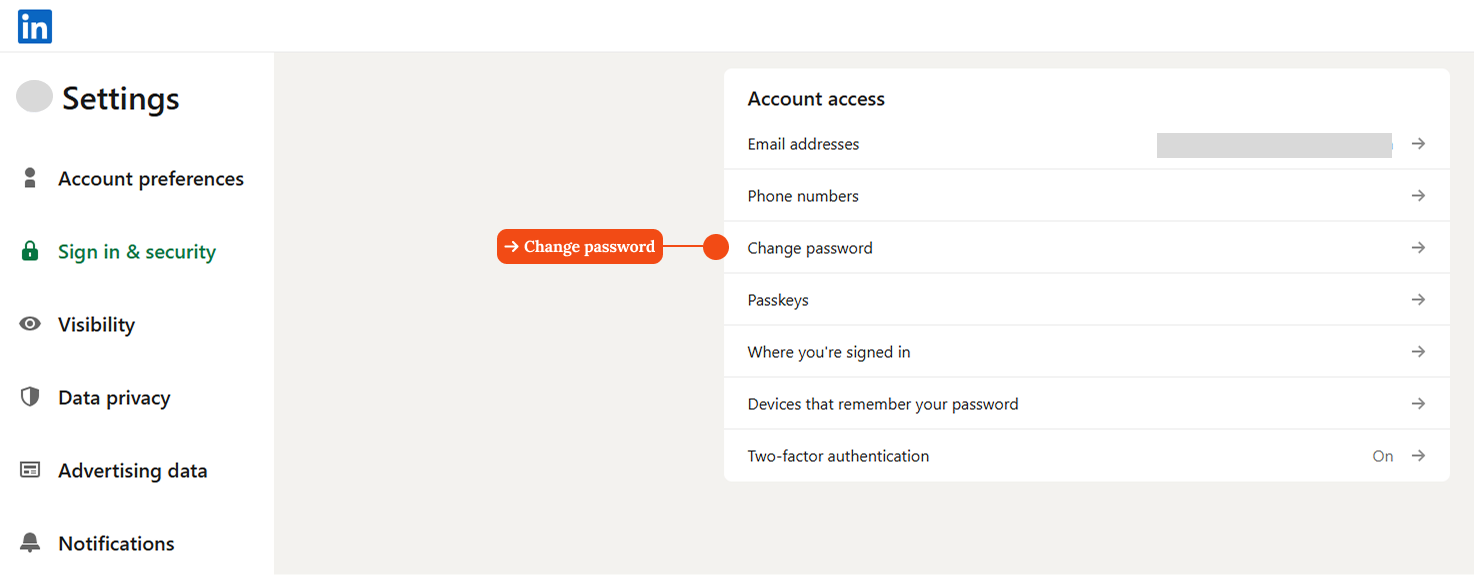
Step 4 — Click on "Change password"
Inside Sign in & security, under Account access, click "Change password".
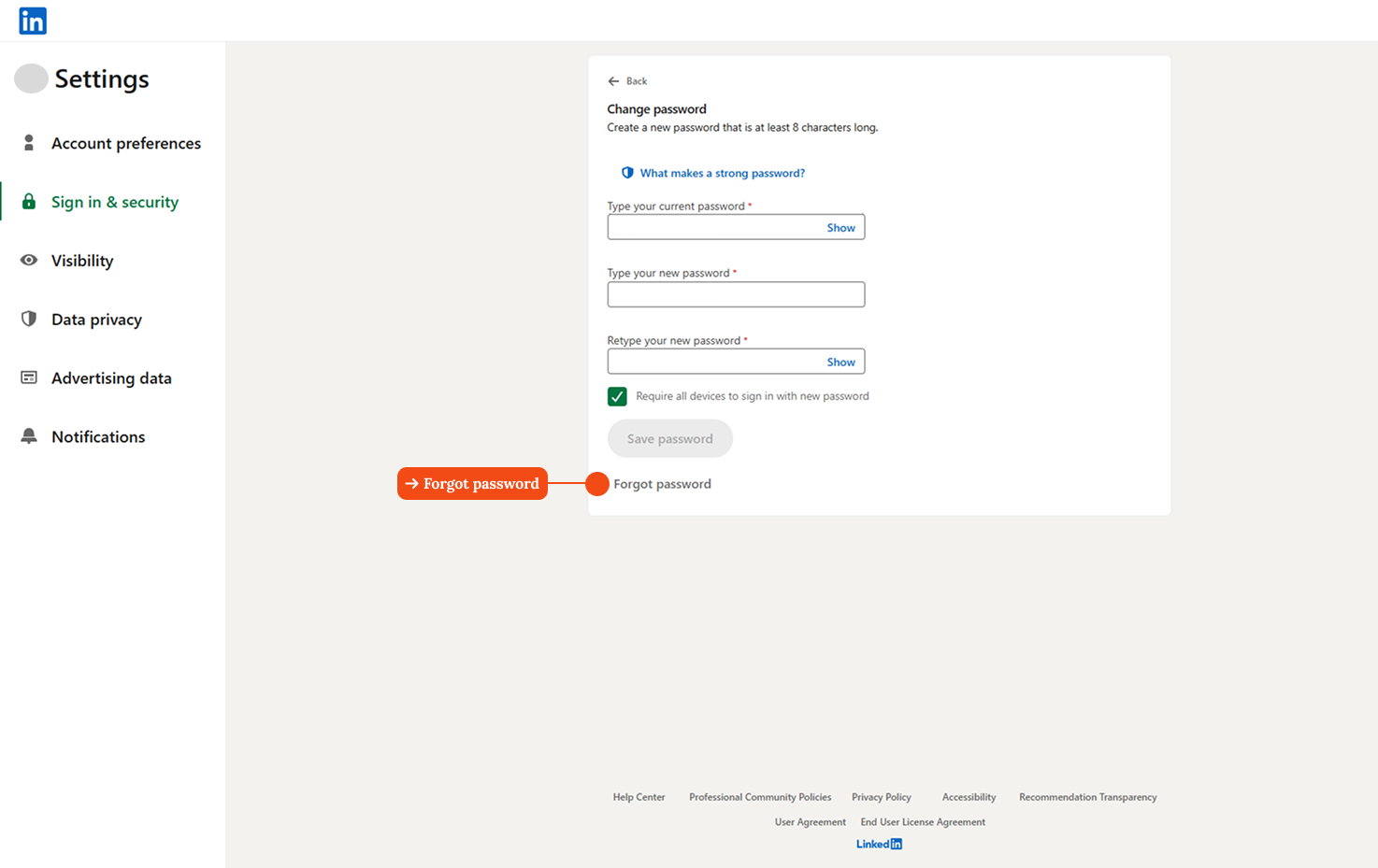
Step 5 — Click "Forgot password" at the bottom of the form
LinkedIn shows a Change password form, but since you don't have a current password, don't try to fill it in. Scroll down and click "Forgot password" at the bottom.
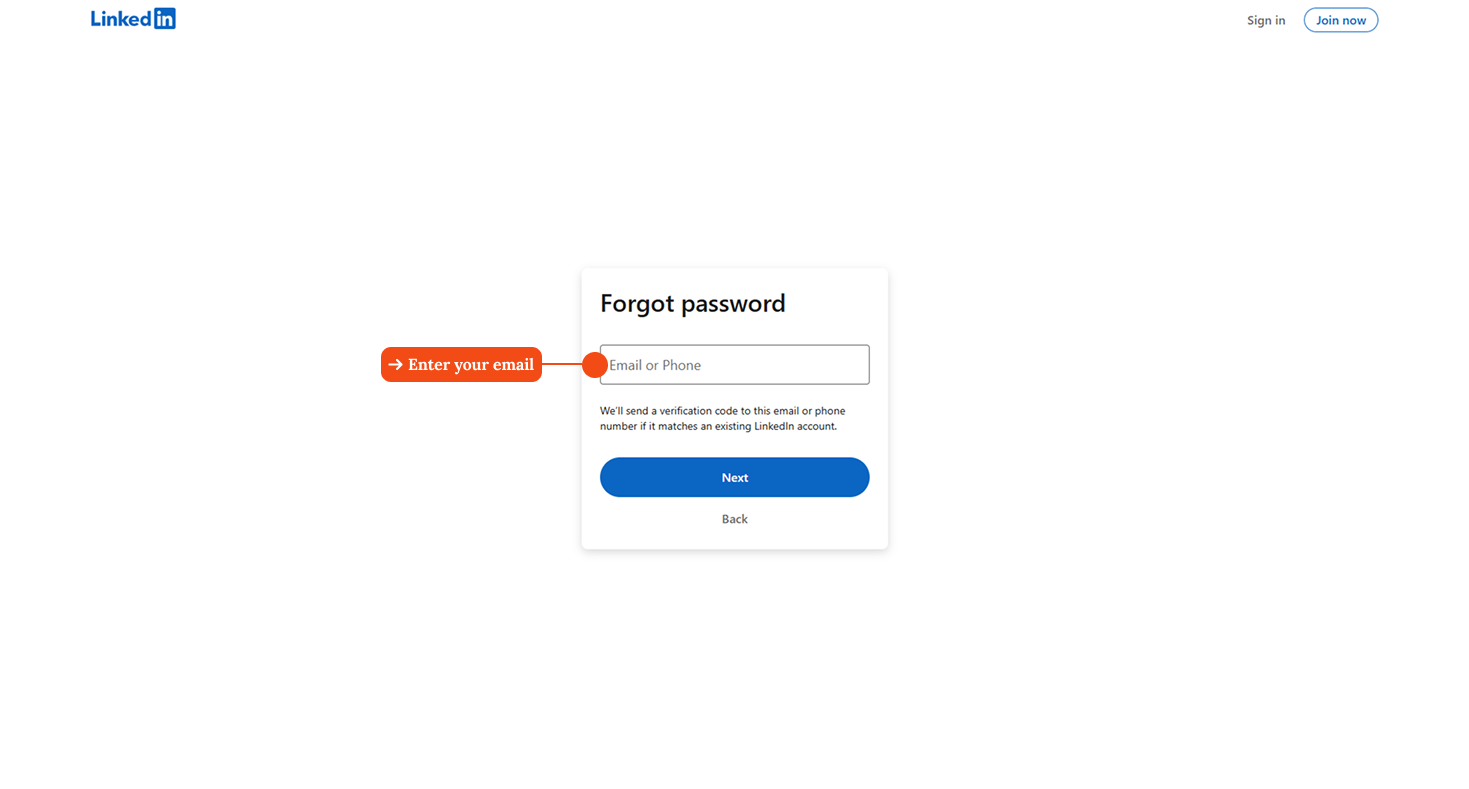
Step 6 — Enter your email address
LinkedIn shows a "Forgot password" screen asking for your email or phone number. Enter the Gmail address linked to your account and click "Next".
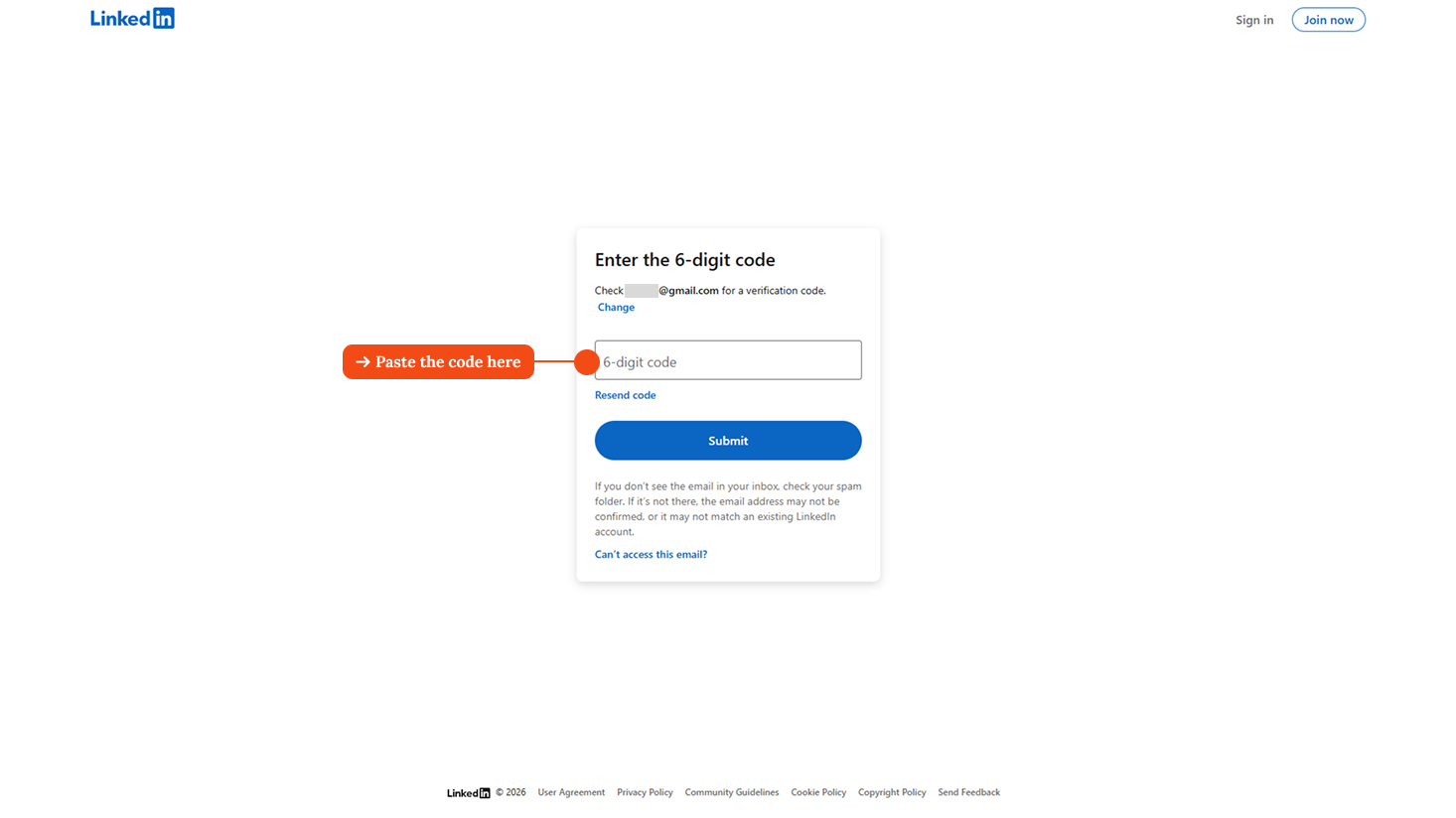
Step 7 — Enter the 6-digit verification code
LinkedIn sends a 6-digit code to your Gmail, not a link. Open your inbox, copy the code, paste it into the field, and click "Submit".
Didn't receive the code?
Check your spam folder. You can also click "Resend code" on this screen. If your email isn't recognized, it may not match the address registered on your LinkedIn account.
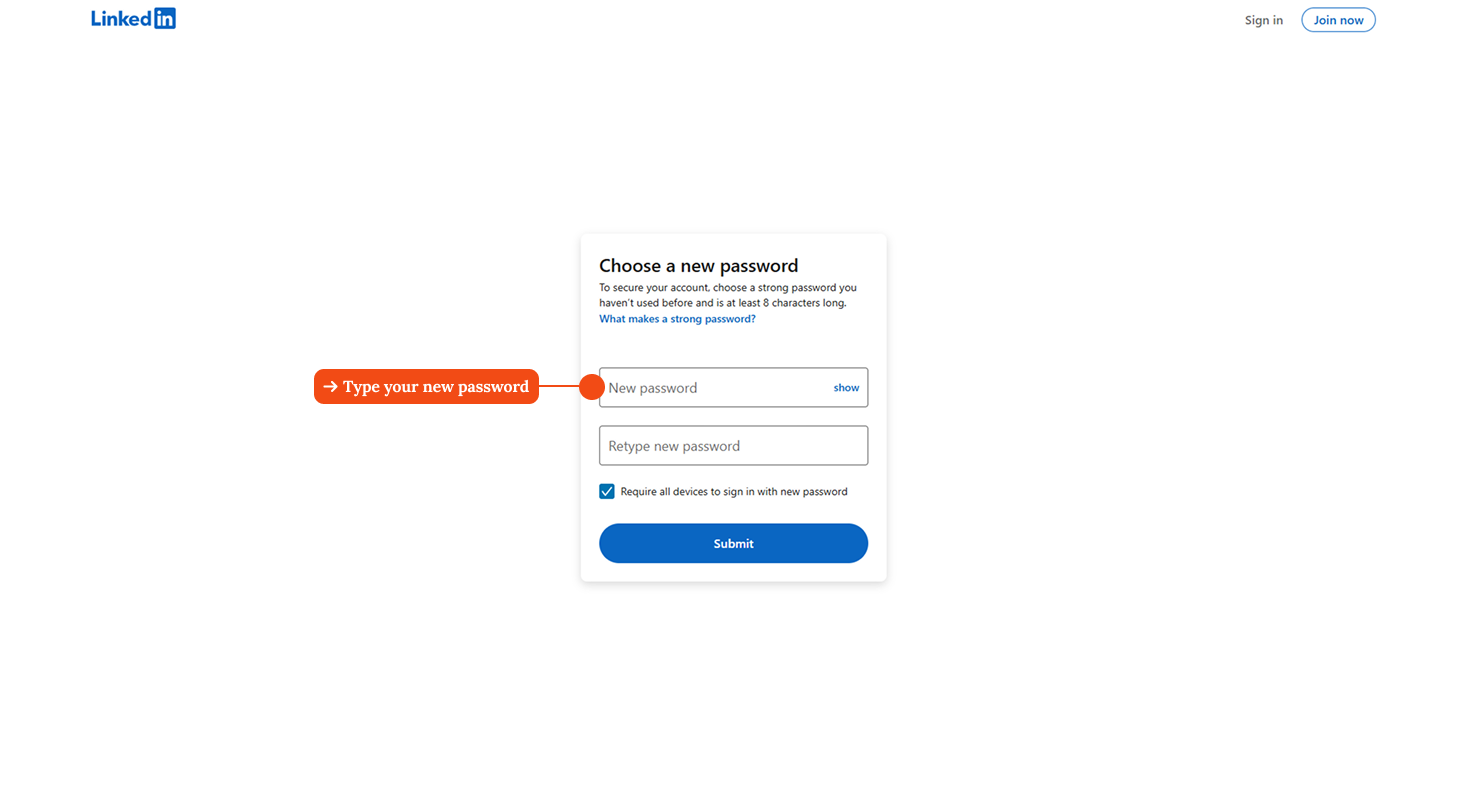
Step 8 — Choose your new password
After submitting the code, LinkedIn takes you to the "Choose a new password" screen. Create a strong password, at least 8 characters, mixing uppercase, lowercase, numbers, and symbols. Save it in a password manager (Bitwarden, 1Password, etc.), you'll need it in Sendio.
Step 9 — Done. Your password has been set.
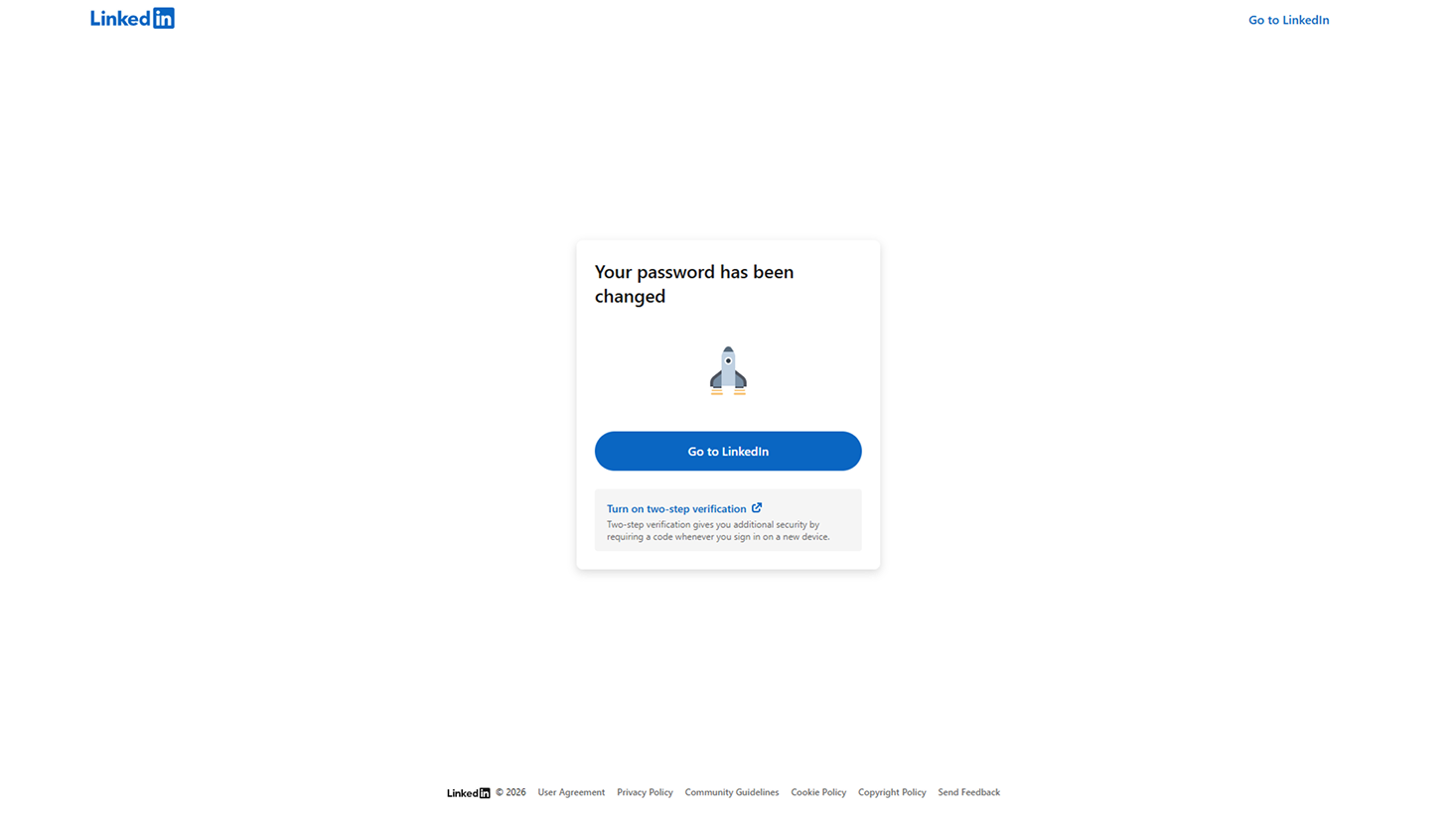
LinkedIn confirms with a "Your password has been changed" screen. Click "Go to LinkedIn" to return to your account.
Step 10 — Connect your account to Sendio
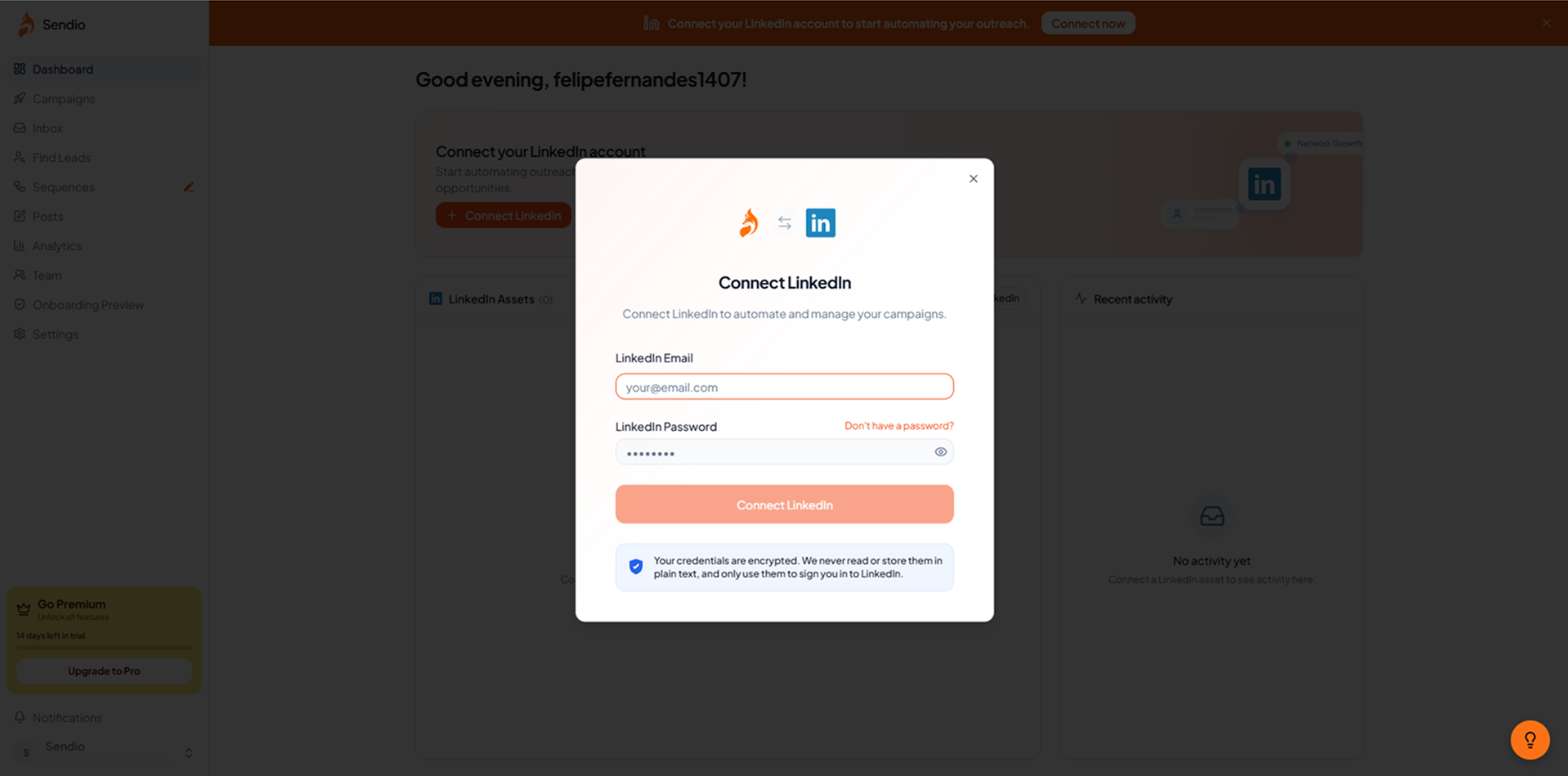
Now go to Sendio, navigate to Connect LinkedIn account, and enter your LinkedIn email and the new password. Your account is active for outreach, sequences, and automated B2B prospecting.
You're all set. Here's what you just enabled:
- A LinkedIn account with its own password, independent of Google authentication
- Direct connection to Sendio for automated B2B LinkedIn outreach and sequences
- A ready-to-run setup for AI SDR campaigns without relying on a growth hacking agency
- A direct alternative to Gojiberry AI for LinkedIn automation with full control over your account
FAQ
Why use "Forgot password" if I didn't forget anything?
Because LinkedIn accounts created via Google never had a password to begin with. "Forgot password" is the only way to create one. It works as the first-time password setup flow for Google-connected accounts.
Will this break my Google login?
No. You can still log in with Google as usual. The password is just an additional authentication method added to your account.
Is it safe to connect my LinkedIn to Sendio?
Yes. Sendio uses your credentials only to operate your account within LinkedIn's activity limits. It does not store or expose your password.
I use Gojiberry AI. Does it have the same requirement?
Yes. Any LinkedIn automation tool, Gojiberry AI, other AI SDR platforms, or outreach tools offered by growth hacking agencies, requires direct LinkedIn credentials. The process above applies to all of them.
Ready to run your first outreach campaign? See how to set up your first Sendio sequence →